Incident Reporting Instructions: Difference between revisions
From hmis
No edit summary |
No edit summary |
||
| Line 33: | Line 33: | ||
[[File:SetupwithshareCircle.PNG|300px]] [[File:AddToHomeScreen.PNG|300px]] | [[File:SetupwithshareCircle.PNG|300px]] [[File:AddToHomeScreen.PNG|300px]] | ||
If this New Interface does not work for you feel free to use the Original Interface. Please send email to | If this New Interface does not work for you feel free to use the Original Interface. Please send email to concierge@opencommons.org if you have any issues. | ||
Revision as of 01:00, February 11, 2026
New Interface
This video will step you through the process of setting up the new interface on your phone. This is video is for an Android phone but should work on an iPhone with Safari browser, iPhone notes below to help you locate the add to screen.
iPhone Notes
Use the Safari Browser on the iPhone or make sure Location services are turned on for any other browser (Only Safari is on by default).
Getting the icon on your iPhone home screen is a little different. You are looking for a box with an up arrow. This may appear at the bottom of the screen before you enter your email, or there may be three dots at the bottom of the screen you need to select before the share box appears. Once located select the share box and scroll down to select 'Add to Home Screen'


If this New Interface does not work for you feel free to use the Original Interface. Please send email to concierge@opencommons.org if you have any issues.
Original Interface
First time you use the system: Take a picture share it with email enter a subject that matches what you see and send it to incident@opencommons.org
On Android
- Open the Camera app.
- Take a picture of what you see.
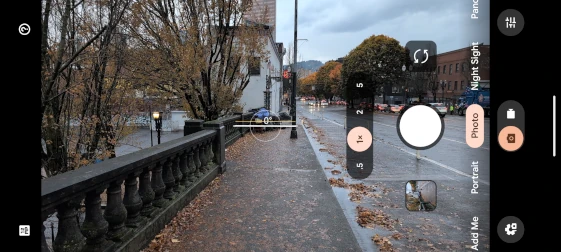

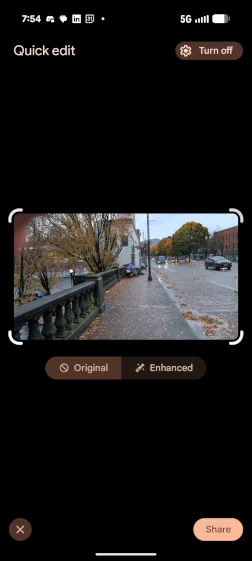
- Tap the share icon (usually a stylized < with three dots or a set of connected dots) immediately after taking the photo or from your gallery
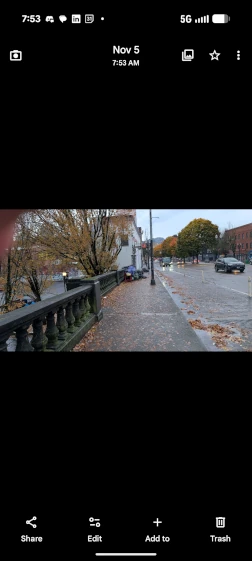

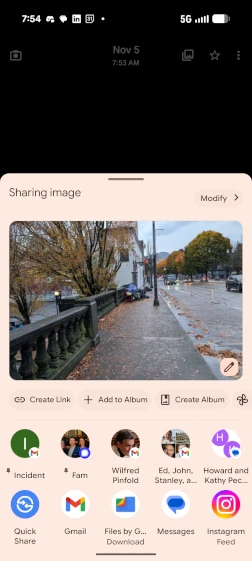
- From the sharing options, select your email app (e.g., Gmail).

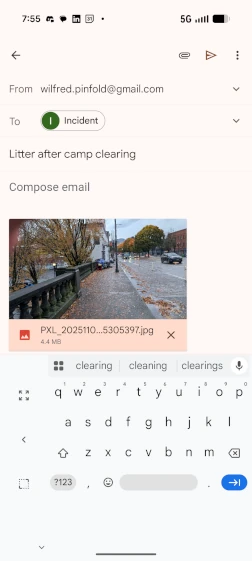
- A new email will open with the picture attached.
- In the "To" field, type incident@opencommons.org.
- In the "Subject" line, write a brief, descriptive subject that matches the image content (e.g., "Fallen tree on highway," "Broken street lamp," "Graffiti on bus stop") use the key words at the bottom of this page if you want the incident reported.

- Tap the send icon (often a paper airplane).

On iPhone
- Open the Camera app.
- Take a picture of what you see.
- Tap the thumbnail of the picture in the bottom-left corner of the screen to open it.
- Tap the share icon (a square with an upward-pointing arrow).
- Make sure you send the Origional Size image not small, medium or large.
- Scroll through the app icons and tap the Mail app.
- A new email draft will appear with the photo attached.
- In the "To" field, enter incident@opencommons.org.
- In the "Subject" field, type a concise and accurate description of the image content (e.g., "Camp blocking sidewalk", "Person sleeping in business doorway", "Graffiti on bus stop") use the key words at the bottom of this page if you want the incident reported.
- Tap the send icon (the paper airplane) in the top-right corner.
For subsequent uses: take the picture and share with the shortcut.
On Android
- Open the Camera app and take a picture.
- Tap the share icon.
- In the share menu that appears, look for a shortcut with the incident@opencommons.org email address, if you use this email regularly it will be at the top or in the "Suggested" section. Tap it.
- A new email will open with the picture attached and the "To" field already filled in.
- Enter your descriptive subject with key words if desired.
- Tap the send icon.
On iPhone
- Open the Camera app and take a picture.
- Tap the share icon.
- Look at the top row of the share sheet, which shows your "Recents."
- If incident@opencommons.org appears here, simply tap it. This will create a new email draft with the picture attached and the "To" field populated.
- If it does not appear, you will need to:
- Tap the Mail app icon below the Recents row.
- Manually enter incident@opencommons.org in the "To" field (your phone may suggest it as you type).
- Enter your descriptive subject with key words if desired.
- Tap the send icon.
Key Words
Key words in your subject line will be used to classify your incident. In addition some of them will direct an email to 311 or the Portland Bike Brigade. For the trigger word to work it only needs to be in the subject so Camping or Camped or Camp on the sidewalk will all work:
- Drug - Portland Bike Brigade
- Vehicle - 311
- Graffiti - 311
- Loiter
- Sleep
- Litter - 311
- Camp - 311